
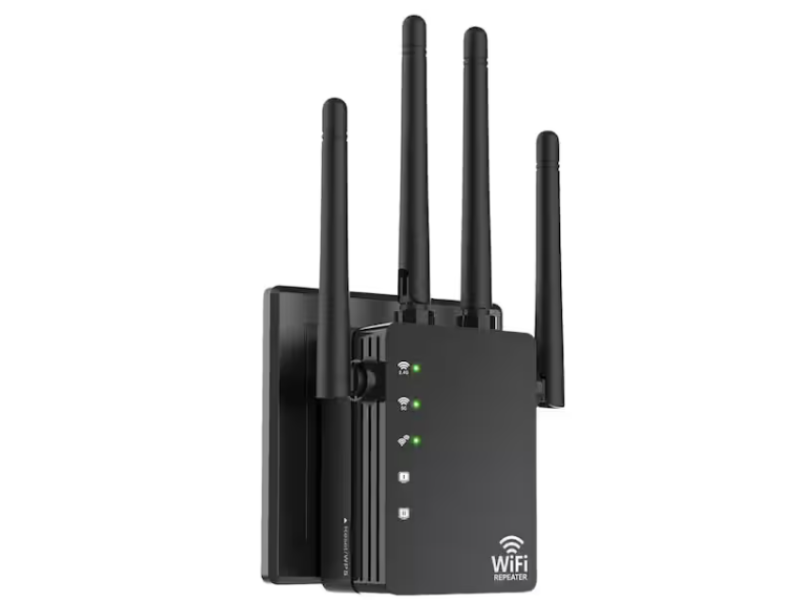
📶 WiFi Repeaters: Extend Your Network’s Reach
Expanding your WiFi network’s coverage can be challenging, especially in larger homes or offices. The limited range of your router-typically up to 150 feet (45 meters) in ideal conditions-often leaves “dead zones” where the signal is weak or lost altogether. This is usually due to physical obstructions like walls, which can reduce signal strength by 20-25 dB, making it nearly impossible for the router’s signal to penetrate multiple rooms.
A practical solution to overcome these limitations is to use a WiFi repeater, also known as a wireless extender or booster. A repeater captures the wireless signal from your primary router and retransmits it, effectively expanding your network’s coverage without the need for additional cables.
🔍 What Is a WiFi Repeater?
A WiFi repeater is a device that “repeats” your existing wireless signal. It works by receiving the signal from your router, amplifying it, and then broadcasting the boosted signal to areas where the original signal was too weak. The repeated network retains the same SSID and password, ensuring seamless connectivity for all your devices.
⚙️ Advantages of Using a WiFi Repeater
Simple Setup:
Most repeaters offer straightforward installation, either via a web interface or with the push-button WPS (Wi-Fi Protected Setup) method.Affordable:
Compared to running new Ethernet cables or installing additional access points, WiFi repeaters provide a cost-effective way to improve coverage.Rapid Coverage Expansion:
They quickly extend the network’s reach, enabling devices in previously unreachable areas to connect reliably.
Note: Although repeaters may slightly reduce overall data speeds (typically by 10-15%), the benefit of extended coverage usually outweighs this minor loss.
🔧 How to Choose the Right WiFi Repeater
When selecting a WiFi repeater, consider the following criteria:
Technical Specifications
Frequency Bands:
Choose a dual-band repeater that operates on both 2.4 GHz and 5 GHz frequencies. The 2.4 GHz band offers better range and penetration through walls, while the 5 GHz band delivers faster speeds with less interference.Data Transfer Speeds:
Ensure the repeater supports current standards such as IEEE 802.11n or 802.11ac. For example, a repeater that supports up to 600 Mbps (802.11n) or even 6 Gbps (802.11ac) can match modern internet service plans.Signal Gain & Sensitivity:
Check the device’s gain (measured in dBi) to ensure it meets your coverage needs. A higher gain can help boost weak signals, especially in challenging environments.
Environment & Area Size
Small Apartments or Single-Story Homes:
A compact repeater with an integrated antenna may be sufficient.Large Homes, Offices, or Multi-Story Buildings:
Opt for more powerful models with external antennas to cover larger areas and overcome obstacles.
Compatibility & Brand Reliability
Seamless Integration:
Ensure that your repeater is compatible with your existing router. Many models from brands like TP-Link, ASUS, Xiaomi, and D-Link offer consistent web interfaces and reliable performance.Build Quality:
Reputable brands tend to use high-quality components that reduce issues like overheating, signal loss, and firmware update problems. Cheaper non-branded options might be less stable and require more troubleshooting.
🔌 How to Install and Configure a WiFi Repeater
Step 1: Setup
Plug in the Repeater:
Connect the repeater to an electrical outlet in a location where it can receive a strong signal from your primary router.Access the Device:
Look on the back of the repeater for its default IP address, username, and password.
Step 2: Connection
Connect via WiFi or Ethernet:
Use your computer or smartphone to connect to the repeater’s network-either wirelessly or via an Ethernet cable using the provided patch cord.Launch a Browser:
Open your web browser, enter the repeater’s IP address, and log in using the provided credentials.
Step 3: Configuration
Select the Repeater Mode:
In the web interface, choose the “Repeater” mode.Set the Region and Network:
Specify your region and select your primary WiFi network from the list of available networks. Enter your network’s SSID and password.Apply Settings:
Click “Apply” or “Save” to commit your changes. The repeater will restart and begin retransmitting your WiFi signal.Dual-Band Setup (if applicable):
If using a dual-band repeater, you may need to separately configure settings for the 5 GHz band, following a similar process.
Step 4: Testing
- Signal Analysis:
Use a WiFi Analyzer app on your smartphone to check signal strength in various rooms. - Speed Test:
Run an internet speed test (using a service like Speedtest.net) to verify that your connection is stable and meets your performance expectations. - Antenna Orientation:
If your repeater has external antennas, adjust them according to whether the device is on the same floor as the router (vertical orientation) or on a different floor (horizontal orientation).
🎯 Conclusion
WiFi repeaters provide an effective, affordable way to extend your network’s coverage, ensuring reliable connectivity in every corner of your home, office, or rural property. By carefully selecting a model that meets your technical needs and following proper installation and configuration steps, you can overcome the limitations of your existing WiFi router and enjoy a more robust, seamless connection.
At safsale.com, we offer a range of trusted WiFi repeaters from leading brands such as TP-Link, ASUS, Xiaomi, and D-Link. Upgrade your wireless network today and experience enhanced performance and coverage, no matter where you are 🚀📶🔧
Explore our products now and boost your WiFi performance with confidence!