
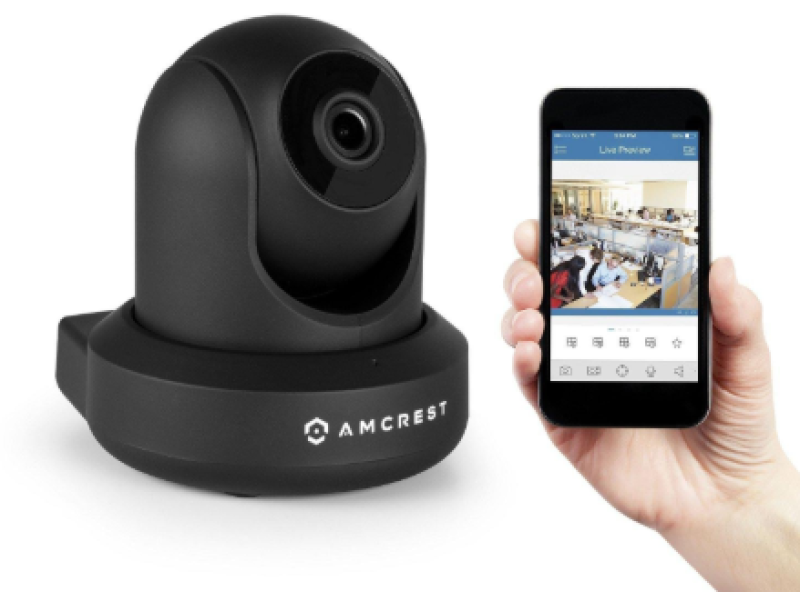
How to Connect a Surveillance Camera to Your Phone
Connecting a surveillance camera to your phone allows for convenient real-time monitoring and enhanced security. The easiest and most effective way to achieve this is through a cloud service.
What You’ll Need
To set up your surveillance camera for phone access, gather the following:
- IP Camera: Ensure the camera supports cloud connectivity.
- Router: For internet access, either wired or WiFi.
- Smartphone: Compatible with the cloud service app (iOS or Android).
- Stable Internet: A high-speed connection is recommended (minimum 5 Mbps for HD quality).
Preparation Steps
Choose a Cloud Service:
- Pick a service that supports your camera model or offers optimal features for your needs.
- Some services recommend cameras specifically designed for their platform.
Set Up Your Router:
- Connect the camera to the router via Ethernet or WiFi.
- Ensure the router is configured with an active internet connection.
How to Set Up the Connection
Install the App:
- Download the cloud service app on your smartphone (e.g., iOS App Store or Google Play Store).
- Register an account if required.
Add the Camera:
- Open the app and select the option to add a new camera.
- Enter the camera’s serial number manually or scan its QR code (usually found on the device or packaging).
Authenticate the Connection:
- Provide the camera’s username (default or custom) and password.
- Enter additional authentication codes if prompted, such as a CAPTCHA or device-specific code.
Confirm Registration:
- Once the details are entered, the camera will register with the cloud service.
Viewing the Feed on Your Phone
- Real-Time Monitoring:
- Log in to the app to access the live feed from the camera.
- Additional Configurations:
- Adjust camera settings, such as resolution and motion alerts, directly through the app.
- Guest Access:
- Share the feed with other devices by granting guest access via the app.
Connection Options
- Wired Setup:
- Connect the camera directly to the router using an Ethernet cable.
- WiFi Setup:
- Configure the camera to connect to the router wirelessly by entering the network name (SSID) and password.
Tips for a Smooth Setup
- Ensure the camera is placed within the router’s WiFi range if using a wireless connection.
- Use a strong, unique password for both your WiFi network and the cloud service account to prevent unauthorized access.
- Choose a cloud service with features like motion alerts, recording options, and encrypted data transmission for added security.
Conclusion
By connecting your surveillance camera to your smartphone via a cloud service, you can monitor your property anytime, anywhere. Whether it’s for a home, office, or outdoor area, this setup ensures convenience, security, and peace of mind.
Shop this topic
Browse Surveillance Cameras Related products from Safsale
Continue from Academy guidance to live equipment and components available on Safsale.
 Reolink RLC-823A 8 Megapixel Outdoor PTZ IP Camera, 2.7-13.5mm LensView product
  Reolink Argus-2e Indoor/Outdoor Wire Free Smart Security Camera 1080pView product
  Hanwha Vision SND-6084 2MP Full HD Day/Night IP Dome Camera, 3-8.5mmView product
  Hikvision ECI-T24F2 4 Megapixel Network IR Outdoor Dome Camera, 2.8mm LensView product