

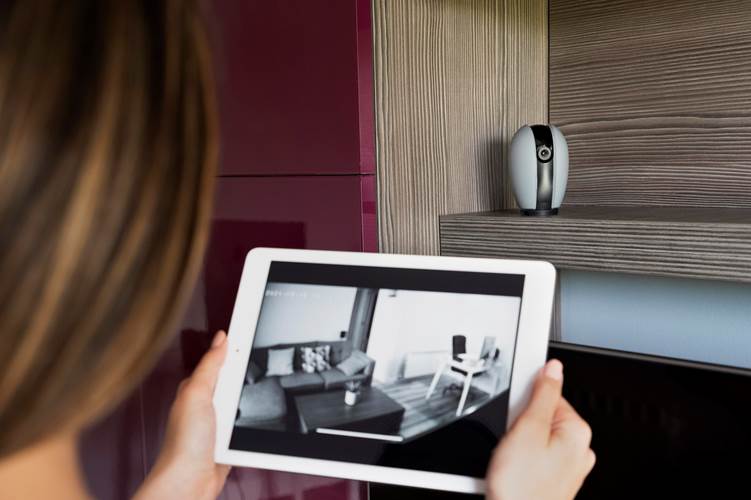
To view recorded security video, first identify where it is stored. The footage may be on a DVR or NVR, a camera's supported memory card, a recording server, or a cloud service. A USB drive is often an export destination rather than the original recording location. The correct playback method depends on the equipment and the format of the saved files.
Understand Codecs and File Formats
H.264 and H.265 describe video-compression standards. MP4, MKV, and other file containers package encoded video and related information. A filename ending in .264 may contain a raw stream or a manufacturer's particular recording format. The extension alone does not guarantee that any ordinary media player can open it.
H.264+, H.265+, and similar labels can refer to manufacturer-specific encoding features. They do not establish universal playback compatibility, and H.265+ should not be described simply as a newer version of H.264+. Check the export and playback options supported by the recorder.
Compression settings can affect detail and image quality. Do not assume that H.264, H.265, or MJPEG always reduces file size without changing the recorded image. Playback also depends on the codec profile, container, player support, and the computer or mobile device's decoding capabilities.
Start with the Recorder or Official Application
The recorder's playback screen or the manufacturer's supported client is often the most straightforward place to start. Select the camera, date, and time range, then examine the timeline. Check whether a filter is showing only motion events or a particular event type when you expect continuous recording.
Confirm the device's clock and time zone, especially when reviewing footage around a daylight-saving-time change. A recording may exist at a different displayed time from the one you initially search. Appropriate account permissions are also necessary for playback and export.
Viewing Video Stored on a Memory Card
If the camera supports local memory-card recording, use its supported playback interface first. The camera may store files in a structure or format that is not convenient to browse directly on a computer. Do not assume every IP camera provides USB mass-storage access or a “Connect to PC” option.
If the manufacturer supports removing the card for playback, follow the shutdown and removal instructions and use an appropriate card reader. If the computer requests formatting, cancel when the card contains recordings you need. Formatting is a storage-preparation step, not a playback requirement.
Viewing Cloud Recordings
Sign in through the service's official app or website, select the correct camera and account, and search the available recording history. Storage capacity, retention, download rights, and continuous-recording support depend on the service plan and configuration. Cloud storage should not be assumed to be unlimited.
If footage is missing, check whether the camera was online, the required subscription or feature was active, and recording was enabled at that time. A camera can provide a live view without having stored past footage.
Exporting a Clip
Select the relevant start and end times and use the system's export function. Where available, save both a convenient viewing copy and the original export with its accompanying player or verification information. Confirm that the exported clip opens on the device where it will be reviewed.
A compatible desktop player may open a standard export. Proprietary files may require the manufacturer's player. Converting a copy can improve compatibility, but conversion may change quality or metadata and does not recover detail that was never recorded. Avoid uploading private security footage to an unfamiliar online conversion service merely to test a file.
Checking Continuous Recording
Continuous recording must be configured before the events you want to review. On supported equipment, check storage health, the recording stream, the schedule, overwrite behavior, and the timeline. Enabling continuous recording now does not create footage from an earlier period.
For a model-specific example, TP-Link's VIGI memory-card storage guide covers storage settings and verification through playback. The exact options depend on the camera and client version. Formatting a card erases stored material, so preserve needed recordings first.
Explore surveillance recording equipment at Safsale. After any storage or schedule change, make a short test recording, play it back, and export a sample to confirm the complete workflow.
Related products from Safsale
Continue from Academy guidance to live equipment and components available on Safsale.
 Reolink RLC-823A 8 Megapixel Outdoor PTZ IP Camera, 2.7-13.5mm LensView product
  Reolink Argus-2e Indoor/Outdoor Wire Free Smart Security Camera 1080pView product
  Hanwha Vision SND-6084 2MP Full HD Day/Night IP Dome Camera, 3-8.5mmView product
  Hikvision ECI-T24F2 4 Megapixel Network IR Outdoor Dome Camera, 2.8mm LensView product